FourColor Ink
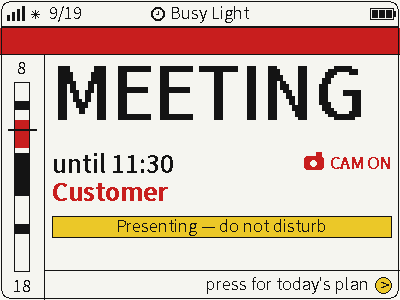
Switch between photos, weather and busy status on a four-color screen for glanceable desktop information.
USB firmware
View & install Views0

Device firmware · NOTE4C · Four-color
Compose weather, calendars, countdowns and notes on your computer, then send them to NOTE4C over your LAN.
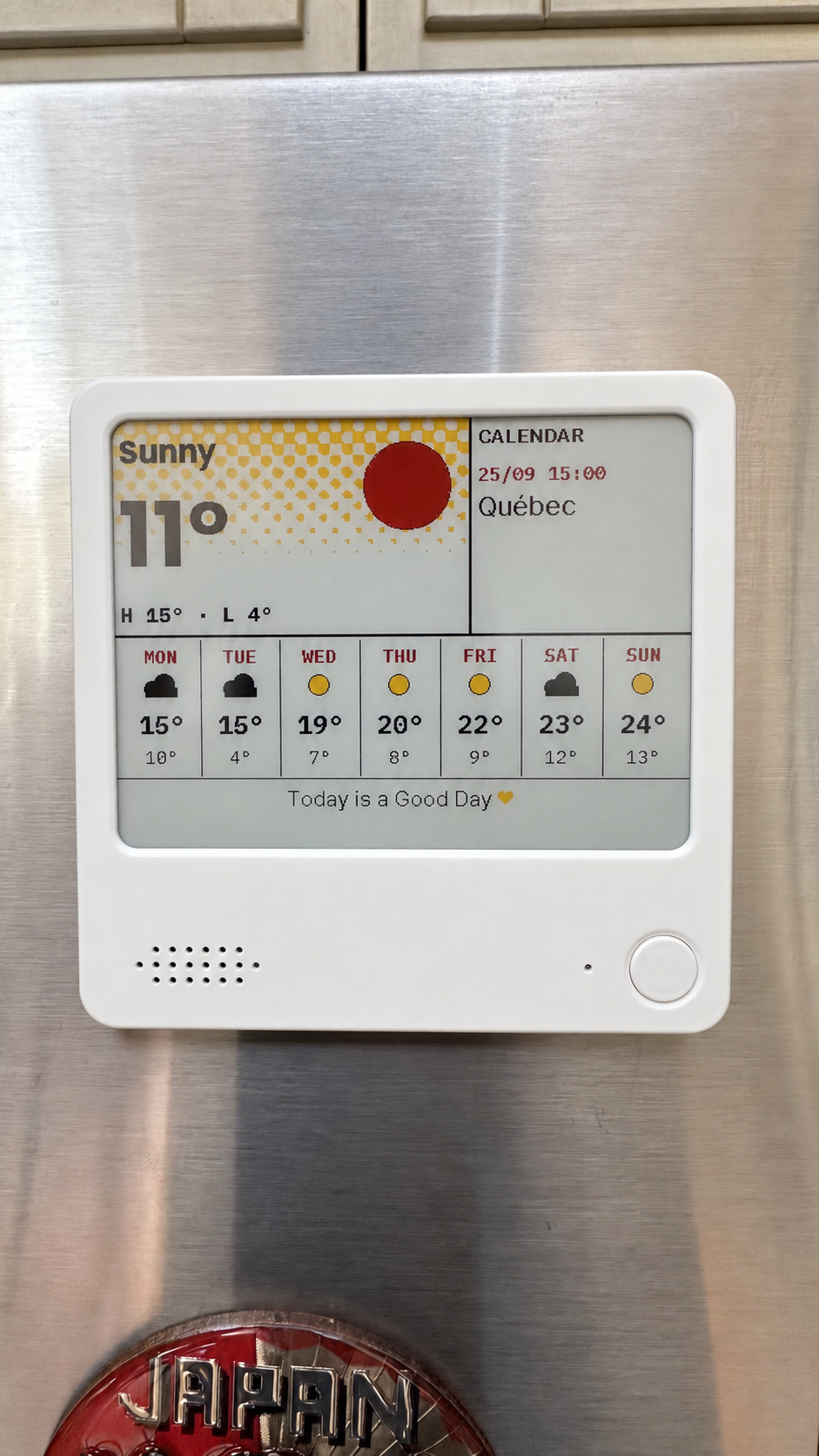
Compose weather, calendars, countdowns and notes on your computer, then send them to NOTE4C over your LAN.
Install & use
Connect the device and give AI the detection results together with this firmware information.
USB chip information cannot distinguish monochrome from four-color screens. Confirm the model first.
Read the chip and capacity first, so AI needs fewer follow-up questions.
Detection may restart the device into download mode. It does not flash firmware; you still need to confirm the display model.
Not detected yet. You can also copy the task first and ask AI to help connect.
Codex on your computer can install dependencies and run programs locally.
Check compatibility → Prepare firmware and a full backup → Assist with local installation → Verify first run
After copying, start a new chat in Codex on your computer and paste the task.
Only project information and the device details selected here are included. Network addresses, accounts and keys are configured locally during installation.
The device shows the expected Paperwake screen and continues to work after repeated updates.
Ask AI to report the installation location, verification results and how to start again. Continue in the same conversation if something goes wrong.
NOTE4C · ESP-IDF 6.x · Local Control Tower · Node.js 20+
Run Control Tower on your computer. The web editor listens on localhost by default and needs no Paperwake cloud account. Your computer and device must communicate over the home LAN.
You can try layouts and pushing with the repository's simulated device first. Simulation does not prove output on a real panel or hardware compatibility.
Prepare ESP-IDF 6.x using the firmware instructions. Confirm the NOTE4C four-color configuration and back up the complete Flash, then build and install. This site does not provide a ready-to-install universal image.
Pair a real NOTE4C using Control Tower's device flow. Content queues while the device sleeps and is delivered during its wake window. Check states such as confirmed display to determine the result.
Project documentation checked · Installation and LAN delivery await physical-device validation. Generating a task does not send it or run an installation automatically.
You still need Control Tower running on your computer to configure sources and deliver images. The device and editor together form the complete workflow.
Wi-Fi is off during deep sleep. The editor can deliver content during the network window after a scheduled wake or button press.
Switch between photos, weather and busy status on a four-color screen for glanceable desktop information.
USB firmware
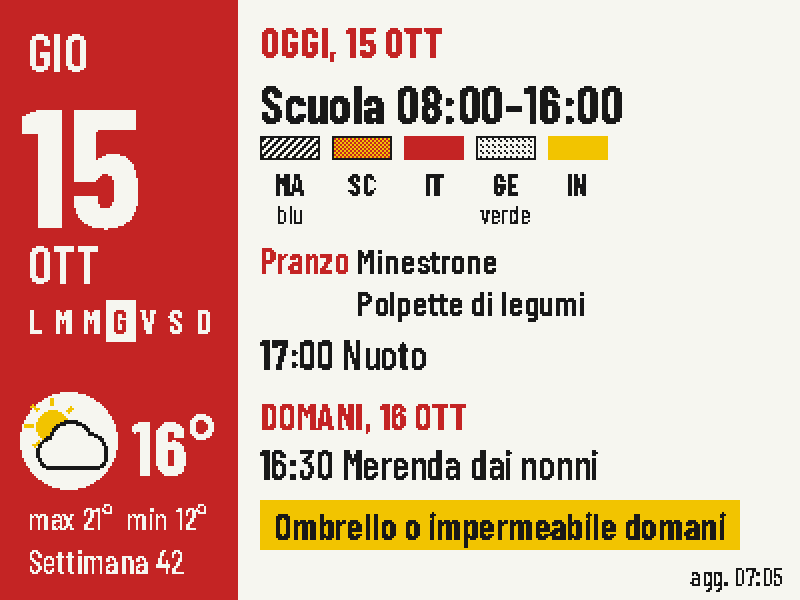
Put today's classes, school lunch, weather and tomorrow's bag checklist on one four-color screen.
Firmware + companion service
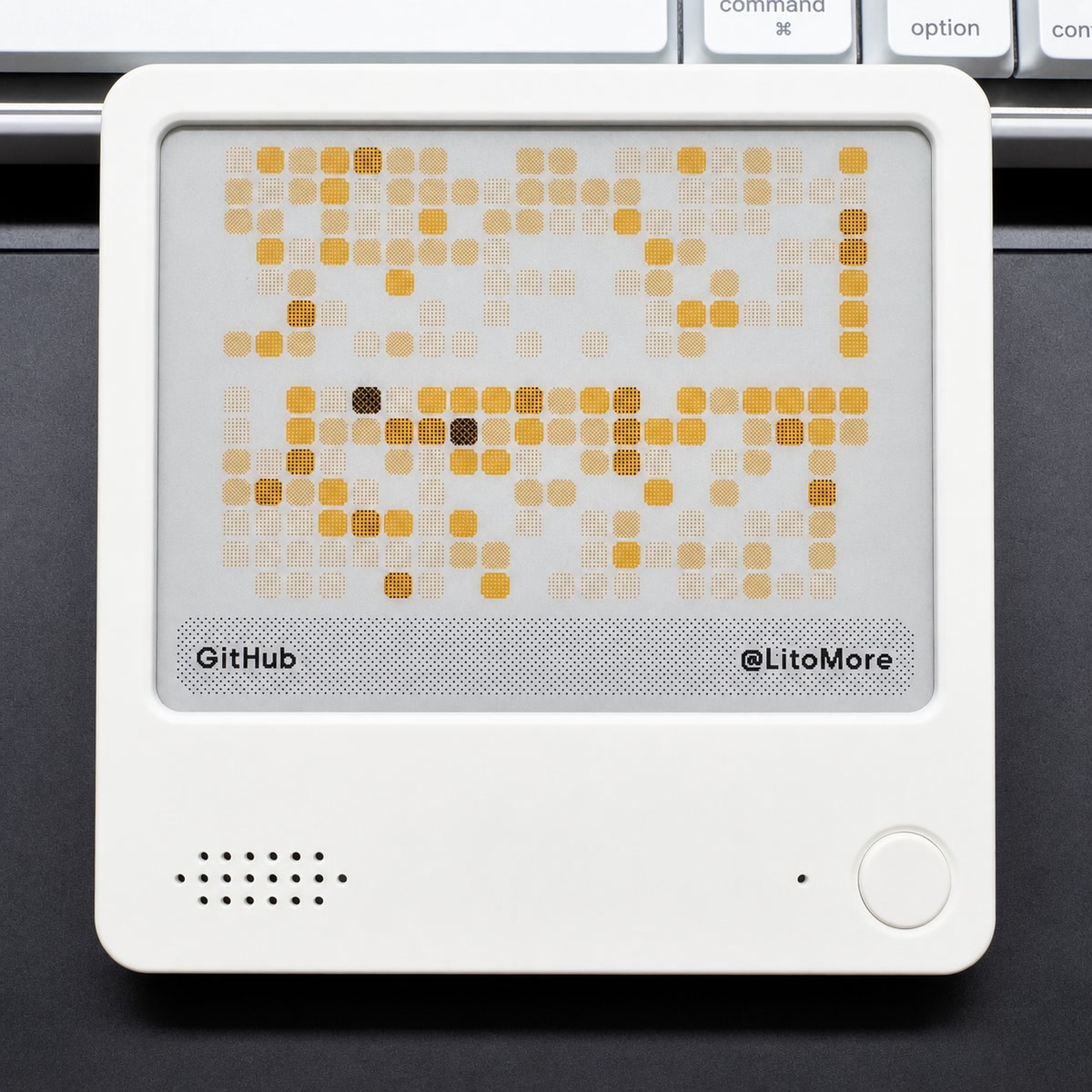
Bring TRMNL calendars, custom content and dashboards to your desk in black, white, red and yellow.
Firmware + companion service