
NOTE4 16-Level Grayscale Demo
Explore full refresh, partial refresh and sixteen grayscale levels on monochrome NOTE4 as a display foundation for your own e-paper projects.
USB firmware
View & install Views0

Device firmware · NOTE4C · Four-color
Turn NOTE4C into a four-color photo gallery with uploads through a phone hotspot or home LAN.
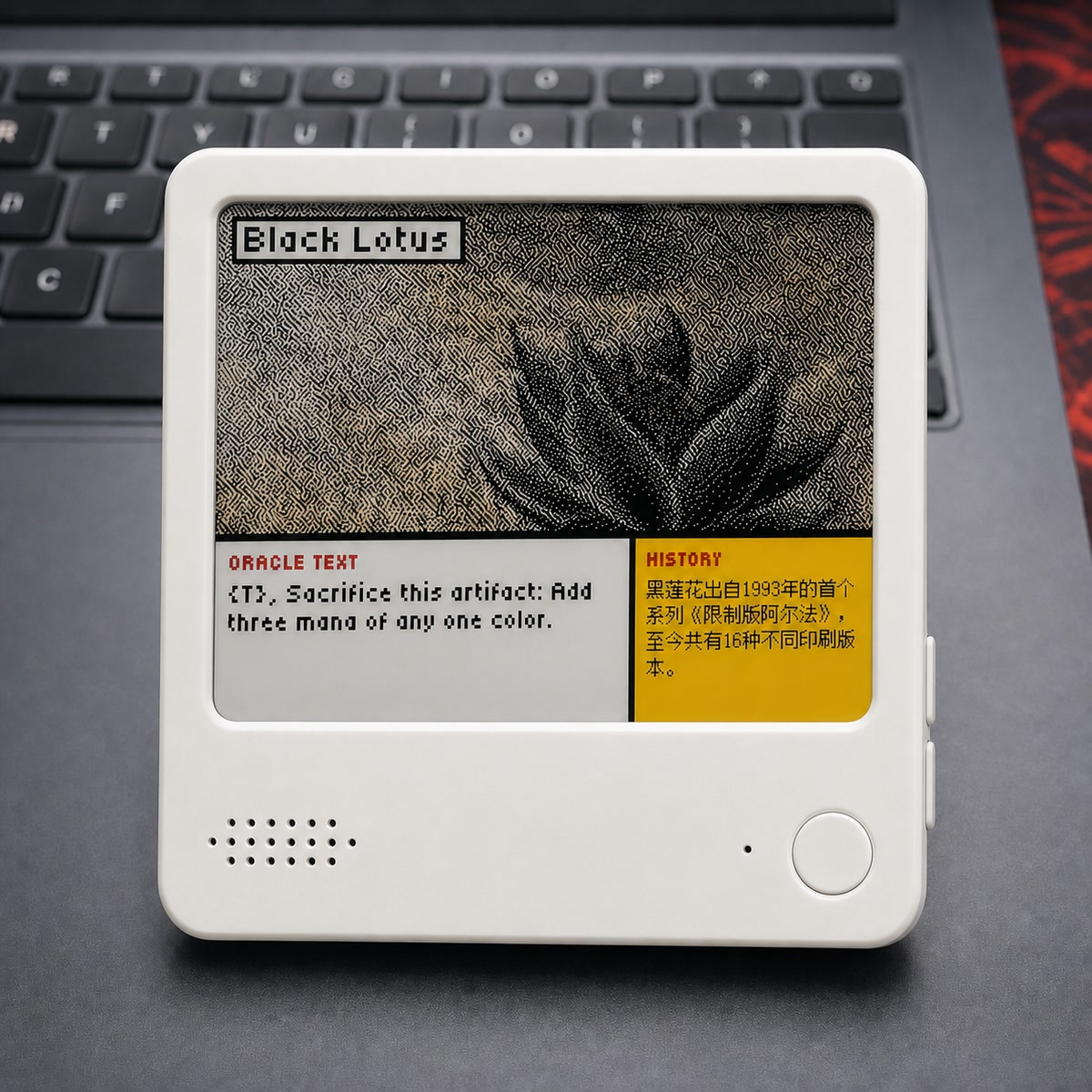
Turn NOTE4C into a four-color photo gallery with uploads through a phone hotspot or home LAN.
Install & use
Connect the device and give AI the detection results together with this firmware information.
USB chip information cannot distinguish monochrome from four-color screens. Confirm the model first.
Read the chip and capacity first, so AI needs fewer follow-up questions.
Detection may restart the device into download mode. It does not flash firmware; you still need to confirm the display model.
Not detected yet. You can also copy the task first and ask AI to help connect.
Codex on your computer can install dependencies and run programs locally.
Check compatibility → Prepare firmware and a full backup → Assist with local installation → Verify first run
After copying, start a new chat in Codex on your computer and paste the task.
Only project information and the device details selected here are included. Network addresses, accounts and keys are configured locally during installation.
NOTE4C displays four-color images and can change them using the project's image-transfer workflow.
Ask AI to report the installation location, verification results and how to start again. Continue in the same conversation if something goes wrong.
The v6.5.9-2bp · 3fbbabb merged image is prepared. Keep a full backup and recovery method before writing. This installation flow has not yet been validated on a physical device.
Four-color NOTE4C · ESP32-S3 N16R8 · USB data cable · Desktop Chrome / Edge
This image is only for four-color NOTE4C. Back up the complete 16 MB Flash and save it separately. Preserving settings only handles the settings partition and does not replace a full backup.
Use desktop Chrome / Edge and a USB data cable. The merged image is written from 0x0000. Keep the device connected during installation; the installation flow still needs physical-device validation.
With no saved network, setup usually opens automatically. Otherwise, hold the up and down buttons together for about one second. Connect your phone to the open hotspot beginning with ZecTrix. If the page does not open, visit http://192.168.4.1, select 2.4 GHz Wi-Fi and save.
On the gallery page, hold BOOT. Connect your phone to InkScreen-AP (password 12345678), then visit http://192.168.4.1. Choose 2 BP four-color conversion, check the 400 × 300 preview, send it and choose to display it. Hold BOOT to exit transfer mode.
After connecting the device to home Wi-Fi, enable the LAN service in settings. A phone or computer on the same network can open the IP shown on the device to upload images, manage albums and configure rotation.
Guide and image metadata checked · Installation awaits physical-device validation. Generating a task does not send it or run an installation automatically.
The tool below connects directly over USB. It writes to the device only after your final confirmation and click on Install.
Check that the cable supports data and close software using the serial port. Keep USB connected, hold the front BOOT button, briefly press the recessed RESET button on the left, release BOOT and reconnect.
The open hotspot beginning with ZecTrix configures home Wi-Fi. InkScreen-AP (password 12345678) transfers gallery images.
A full four-color refresh usually takes over 10 seconds. Flashing or brief color inversion is normal during refresh. Wait for it to finish before using the buttons.
NOTE4C is a development platform. This reference firmware provides a gallery, network setup and a development foundation. It does not include consumer NOTE4 firmware or the official NOTE4 cloud experience.
Explore full refresh, partial refresh and sixteen grayscale levels on monochrome NOTE4 as a display foundation for your own e-paper projects.
USB firmware
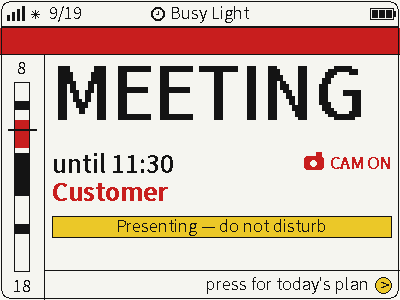
Switch between photos, weather and busy status on a four-color screen for glanceable desktop information.
USB firmware
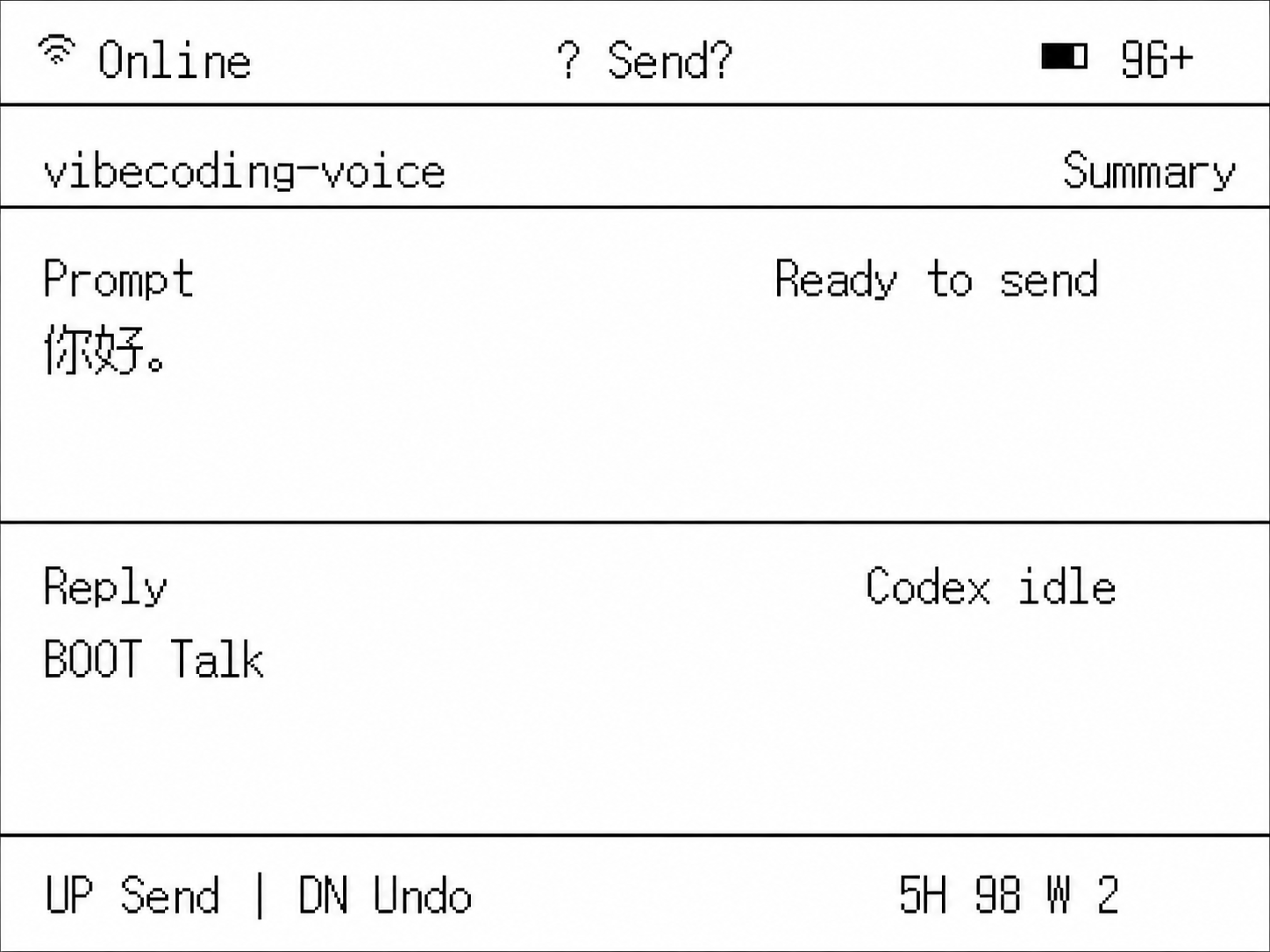
Hold to speak and send ideas to Codex or Claude Code, turning NOTE4 into a desktop voice input device.
Firmware + companion service