
NOTE4 16-Level Grayscale Demo
Explore full refresh, partial refresh and sixteen grayscale levels on monochrome NOTE4 as a display foundation for your own e-paper projects.
USB firmware
View & install Views0

Device firmware · NOTE4 · Monochrome
Hold to speak and send ideas to Codex or Claude Code, turning NOTE4 into a desktop voice input device.
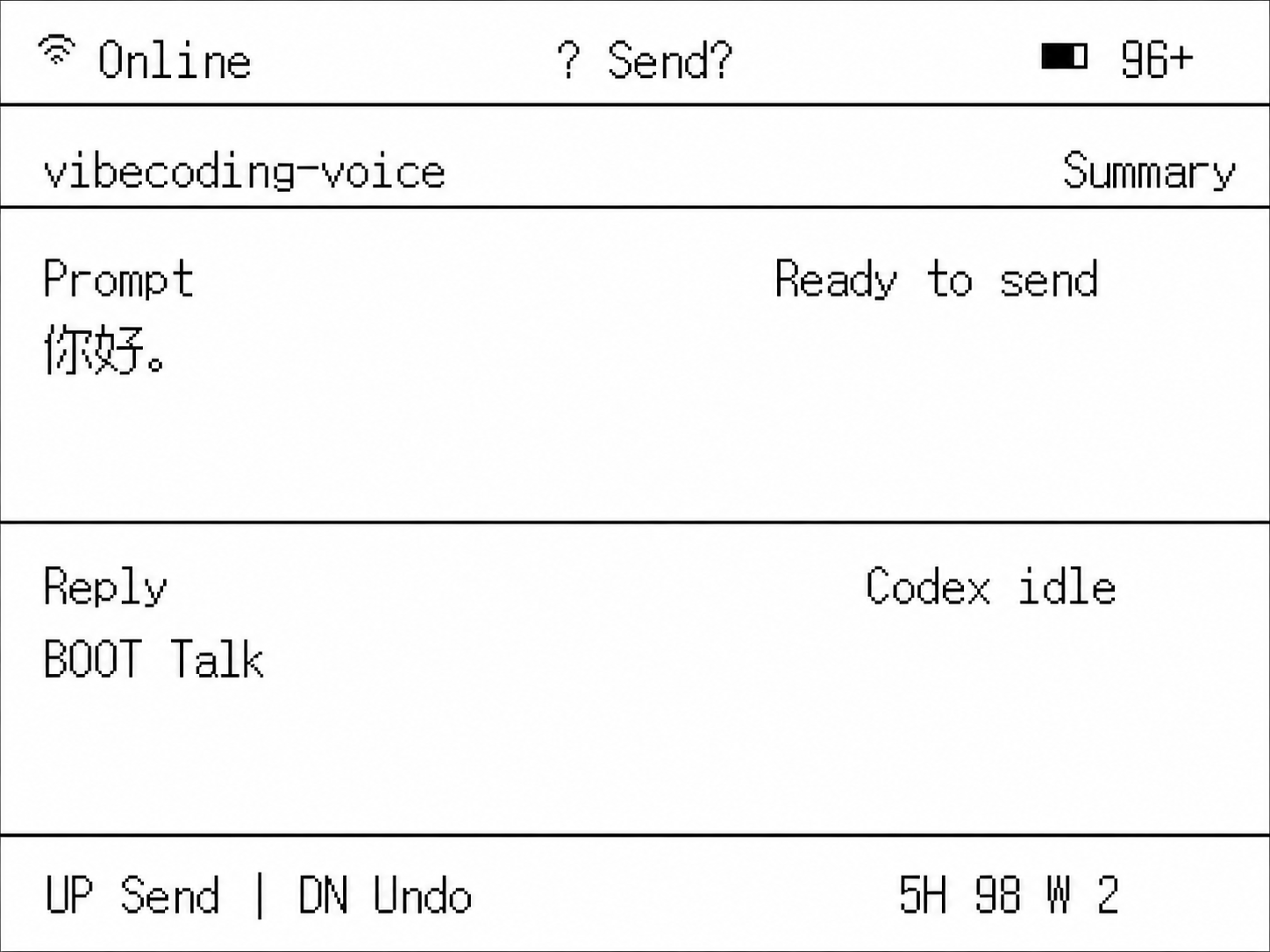
Hold to speak and send ideas to Codex or Claude Code, turning NOTE4 into a desktop voice input device.
Install & use
Connect the device and give AI the detection results together with this firmware information.
USB chip information cannot distinguish monochrome from four-color screens. Confirm the model first.
Read the chip and capacity first, so AI needs fewer follow-up questions.
Detection may restart the device into download mode. It does not flash firmware; you still need to confirm the display model.
Not detected yet. You can also copy the task first and ask AI to help connect.
Codex on your computer can install dependencies and run programs locally.
Check compatibility → Prepare firmware and a full backup → Assist with local installation → Verify first run
After copying, start a new chat in Codex on your computer and paste the task.
Only project information and the device details selected here are included. Network addresses, accounts and keys are configured locally during installation.
The device shows the expected vibecoding-voice Voice Coding Remote screen and continues to work after repeated updates.
Ask AI to report the installation location, verification results and how to start again. Continue in the same conversation if something goes wrong.
Monochrome NOTE4 · Computer companion client · Reachable LAN
This project requires device firmware and a computer-side component. First confirm your operating system, transcription service and AI coding tool meet the repository's requirements.
Installation replaces the device's current software. Back up the monochrome NOTE4's complete Flash, then build device firmware in the project's specified environment.
Configure the device and computer components on the same LAN. Test recording and transcription before confirming the text destination. Specific releases and install commands have not been checked in this site.
Information organized · Release version and installation await review. Generating a task does not send it or run an installation automatically.
This project is a voice remote for AI coding. Its complete workflow depends on a computer and transcription/coding tools.
This listing covers monochrome NOTE4 only. Its image cannot be installed directly on NOTE4C.
Explore full refresh, partial refresh and sixteen grayscale levels on monochrome NOTE4 as a display foundation for your own e-paper projects.
USB firmware
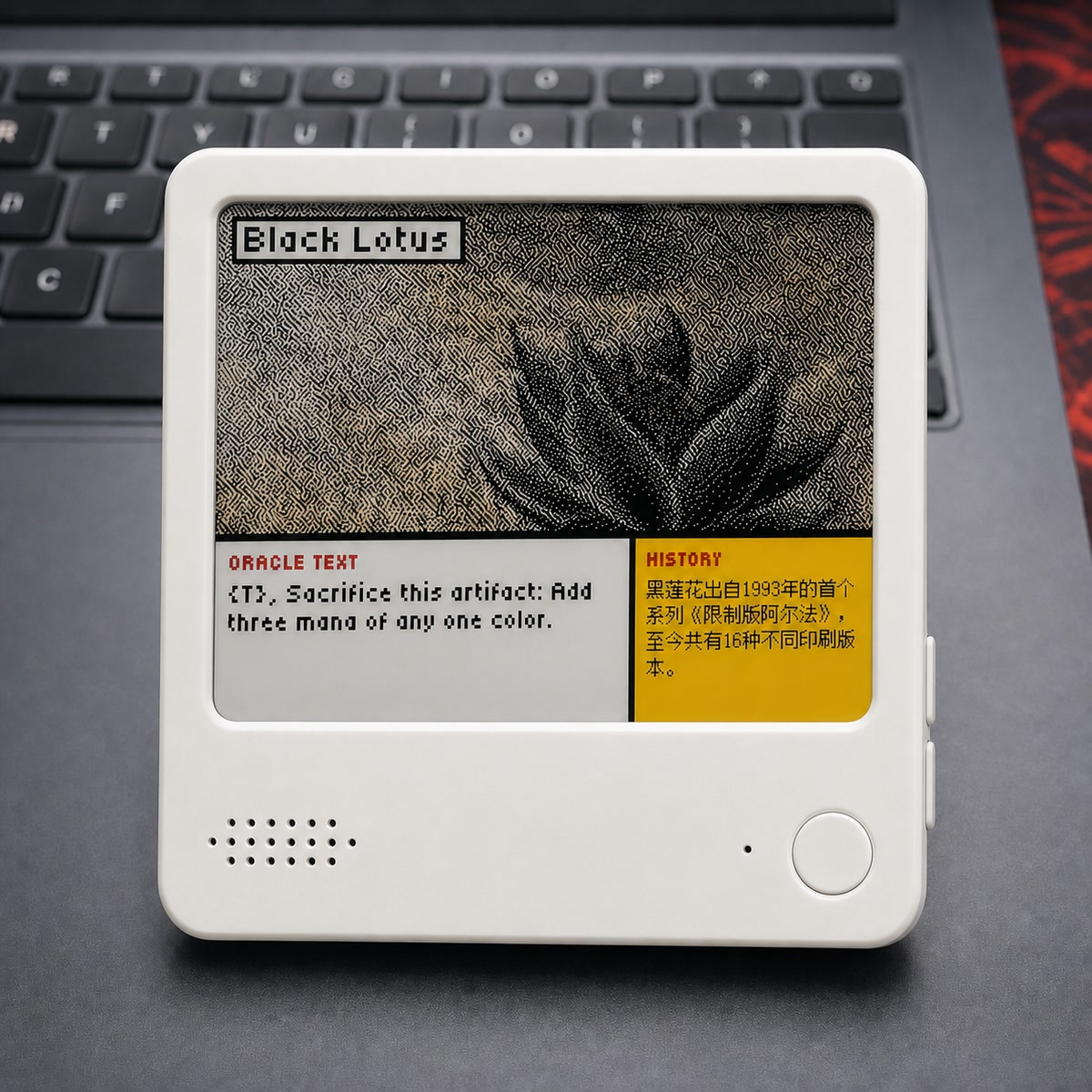
Turn NOTE4C into a four-color photo gallery with uploads through a phone hotspot or home LAN.
USB firmware
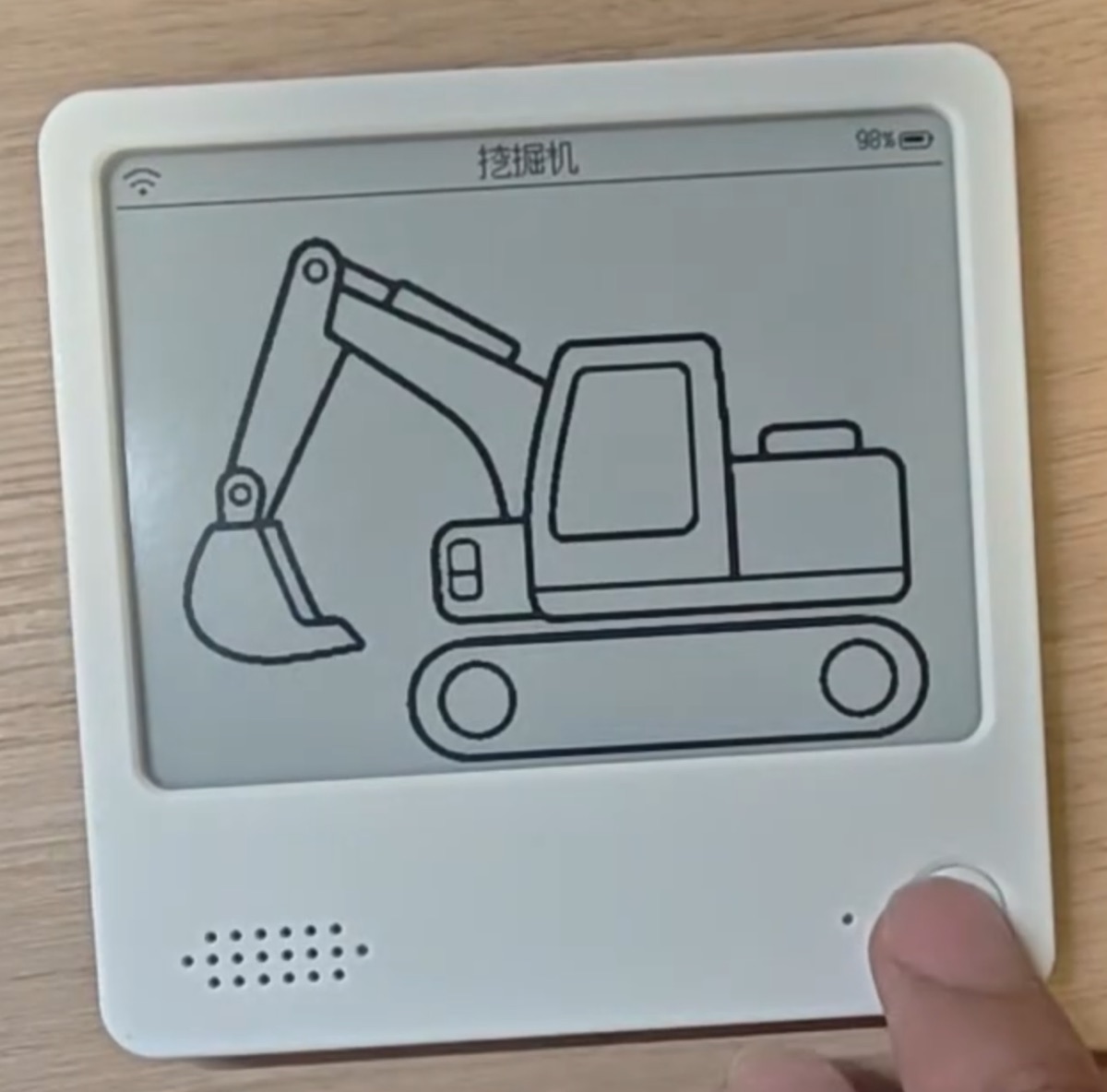
Manage photos, information dashboards and voice interfaces on your own server, extending content as needed.
Firmware + companion service